Open the Schedule tab
Tap the Schedule icon in the bottom navigation. This is your calendar view for trips, reserve days, and non-flying events.
Tap + Add in the top-right corner, then choose Import schedule.
Choose your import method
CrewAlert supports four ways to import — pick whichever fits your schedule format:
- Screenshots (OCR): Select up to 8 screenshots in order. CrewAlert stitches them and runs on-device Apple Vision OCR — no internet needed.
- Paste: Copy text from your crew portal or email and paste directly.
- File: Upload a .txt, .csv, or .pdf file from your Files app.
- AI smart parse (Pro): If on-device parsing finds nothing, the text is sent to the cloud for AI-assisted parsing.
For best OCR results, capture your schedule in list/agenda view with the full event text visible. Multi-page schedules — select all screenshots in reading order before confirming.
Review OCR text, then parse
CrewAlert runs Apple Vision OCR on-device and shows the extracted text before parsing. Review the text and make corrections if anything looks off.
Tap Parse schedule to convert OCR text into events. Then review parsed output and confirm import into your calendar.
If OCR misses details, crop less aggressively and recapture in list view. Dense month-grid screenshots usually parse worse than list/agenda screenshots.
Airline & format support
The import chain in v1.0.5 covers most major US carriers. On-device parsing is tried first; AI smart parse (Pro) handles anything else automatically.
Set your Import Defaults
To avoid repeating the same options every import, set your defaults once:
After importing
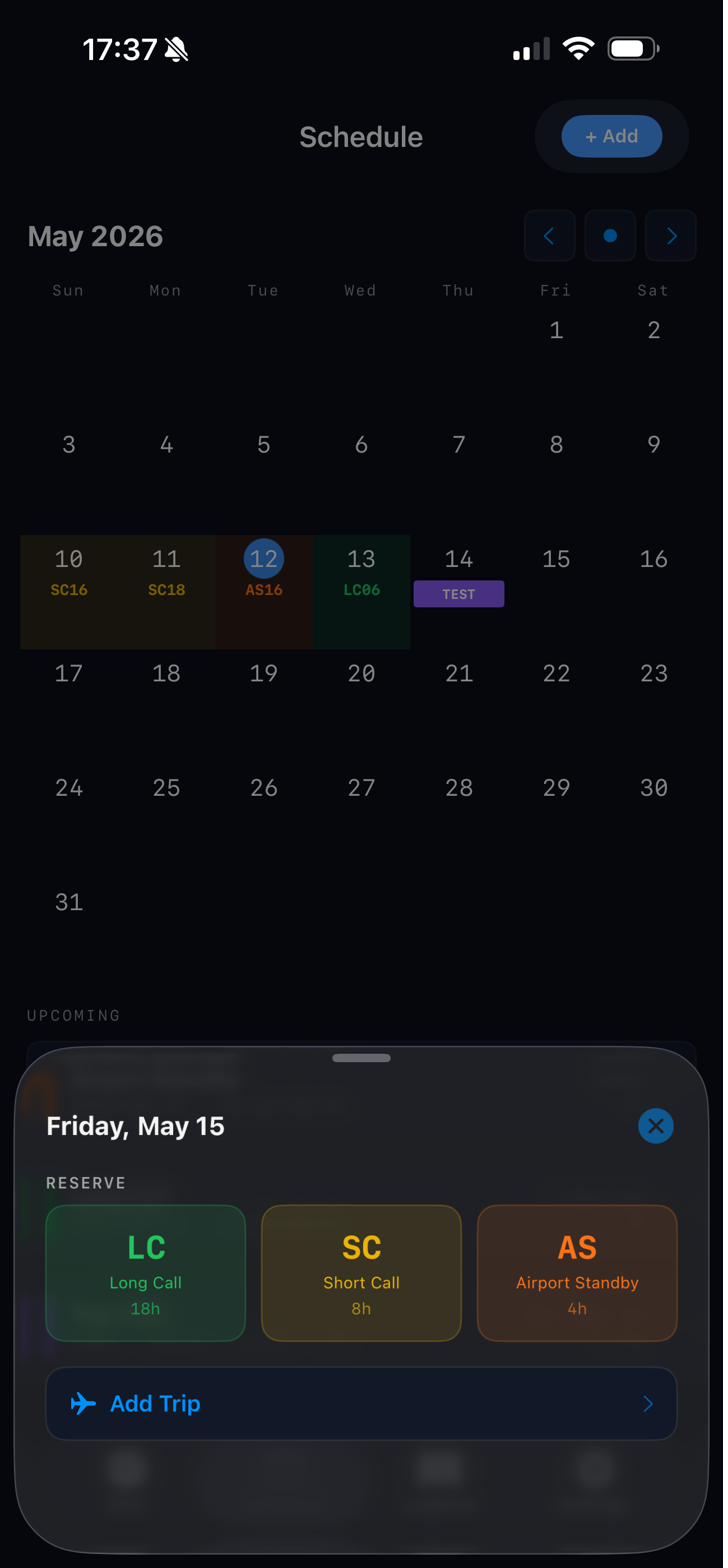
Once parsed, your schedule entries appear on the calendar. Each entry is color-coded:
Go to Settings → Reserve Setup to customize your reserve codes and what type maps to each color. Different carriers use different abbreviations.
Subscription, trial, and redeem codes
CrewAlert uses Apple billing with RevenueCat entitlement handling.
Help & Support
In the app, open Settings → Help & Support to jump to support resources on this site, including the FAQ, guides, and contact options.