Understanding reserve types
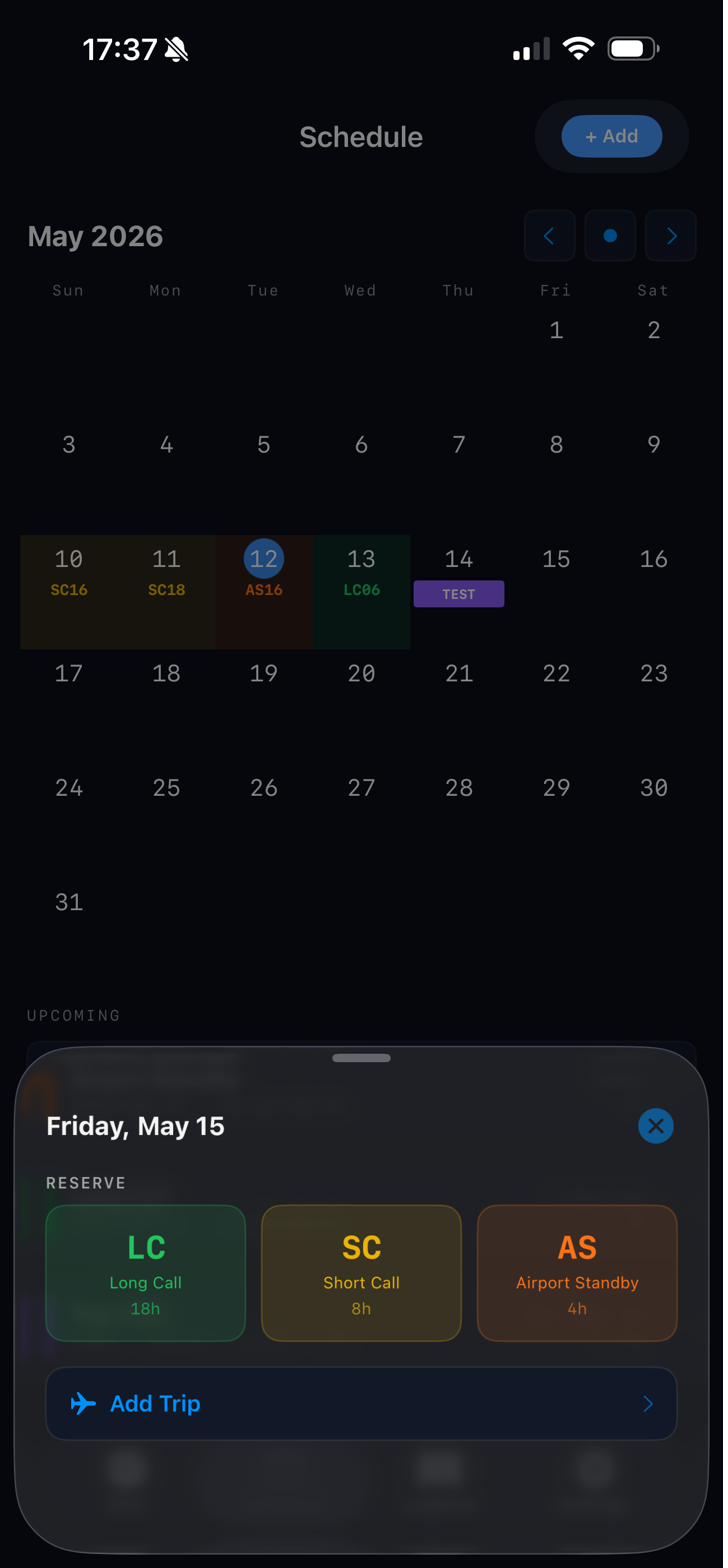
CrewAlert tracks three standard reserve types, each color-coded by urgency. Your contract defines the exact windows — CrewAlert just makes them visible.
Long Call (LC)
Longest response window. Typically 2+ hours notice. Green on your calendar — the most relaxed reserve type.
Short Call (SC)
Shorter response window, often 1 hour or less. Yellow — you should be ready to move when scheduling calls.
Airport Standby (AS)
You're physically at the airport. Orange — highest urgency, assignment can happen any time before window end.
Custom Types
Go to Settings → Reserve Setup to add, rename, or adjust window lengths for your specific contract rules.
Adding a reserve day
Go to the Schedule tab and tap + Add → Add reserve schedule. Select the date, choose your reserve type (LC, SC, or AS), and set your window start and end times.
You can also import reserve days directly from your scheduling portal — they'll be auto-detected and mapped to the correct type.
If your airline uses different abbreviations than LC/SC/AS, go to Settings → Reserve Setup and customize the codes to match your contract.
Reading the countdown
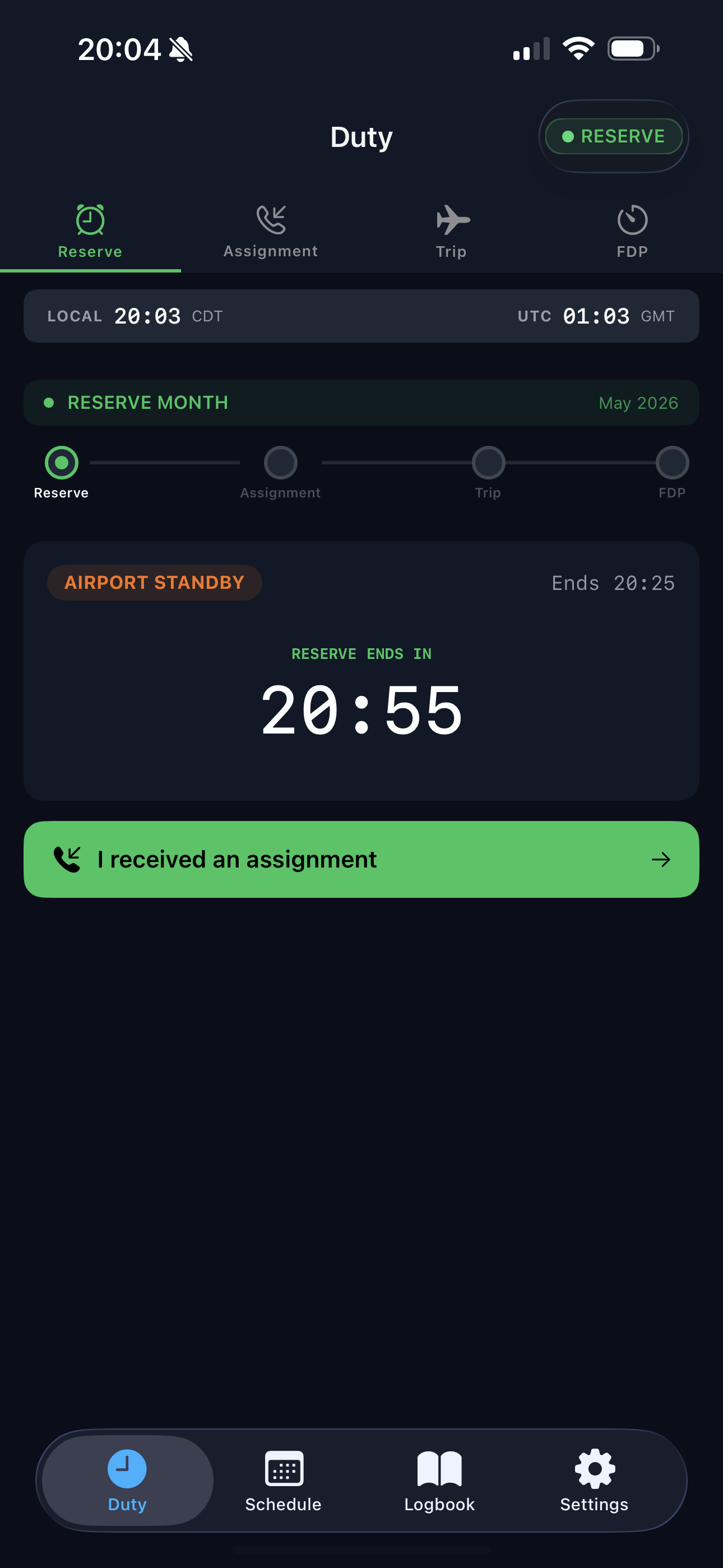
When a reserve window is active, open the Duty tab and select the Reserve sub-tab. You'll see a large countdown showing how much time remains in your current window.
The reserve type label (LC, SC, or AS) appears at the top. Tap "I received an assignment" when scheduling calls — this advances you to the Assignment step and starts your add pay calculation.
Add pay thresholds are tracked automatically. CrewAlert calculates your +1 and +2 windows based on when the reserve window started, so you know exactly where you stand before picking up the phone.
When you get assigned
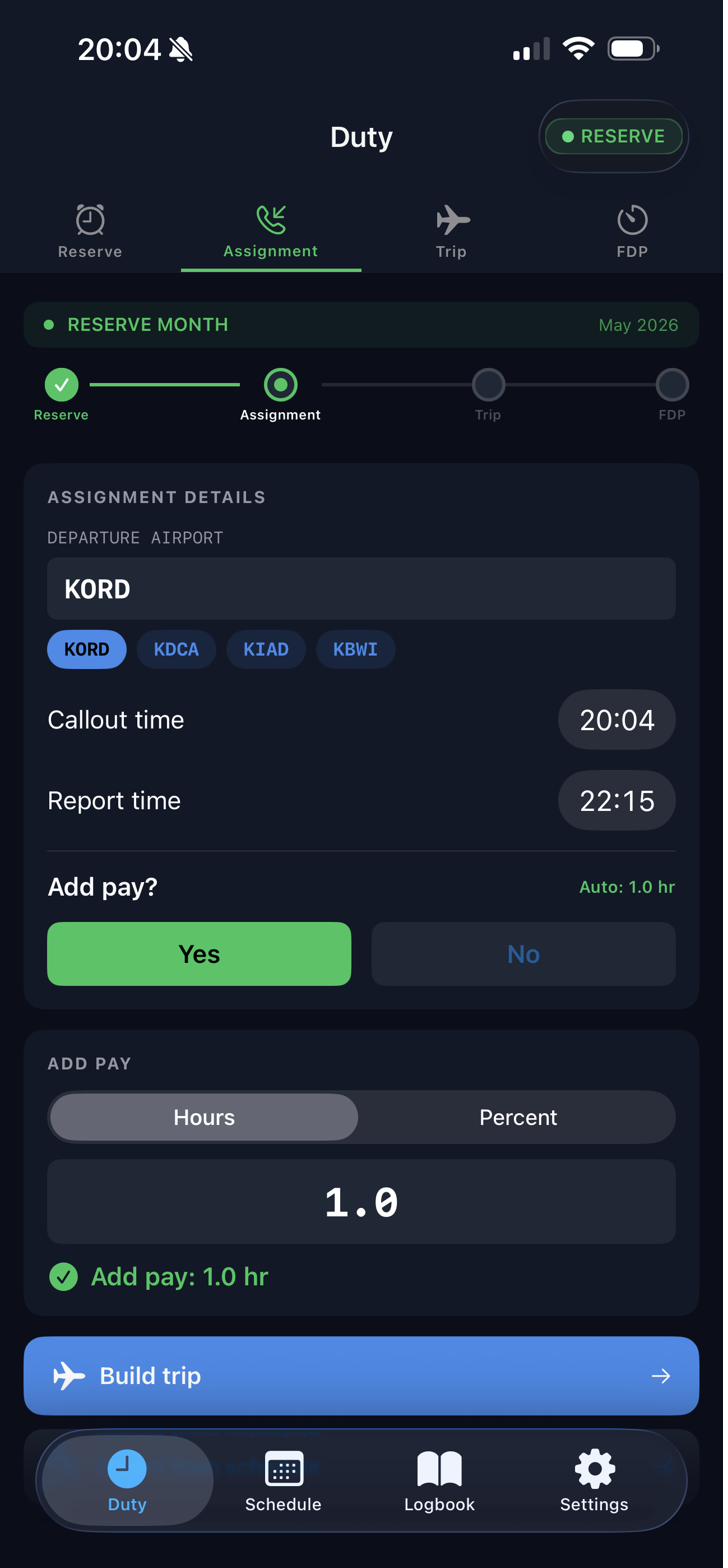
Tap "I received an assignment" on the Reserve screen. Enter your callout time and report time, then confirm whether add pay applies.
CrewAlert automatically calculates your add pay amount based on your contract hours. You can enter it as hours or a percentage. Once confirmed, tap Build trip to create your trip with the assignment details pre-filled.
Live Activity — lock screen reference
When a reserve window is active, a Live Activity automatically appears on your lock screen and Dynamic Island. It shows:
Reserve type
LC, SC, or AS — immediately visible without unlocking your phone.
Window end time
When your current reserve period ends, so you know when you're legally clear.
Add pay windows
Your +1 and +2 thresholds — visible at a glance when scheduling calls.
No sounds or banners
The Live Activity is a silent reference tool only. No alerts, no Critical Alerts permission needed.
As soon as a reserve window you've added begins, the Live Activity launches on its own. No need to manually start it.